Office Installation ID Verification

Step 1 of 4

Open Microsoft Activation Wizard

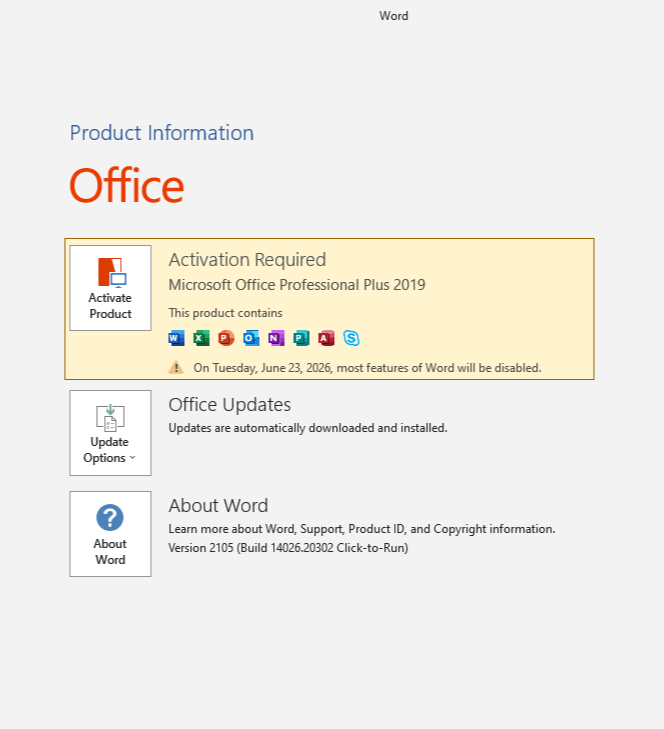
  • Open Word or Excel and go to FileAccount.
  • Click Change Product Key (or Change License).
Office Account Panel
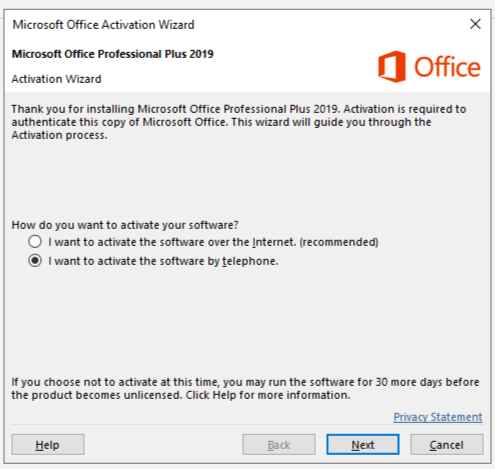
Step 1: Open Activation Wizard
  • Choose: "I want to activate the software by telephone."
  • Click Next to proceed.
Activation Wizard
Step 2: Choose Telephone Activation
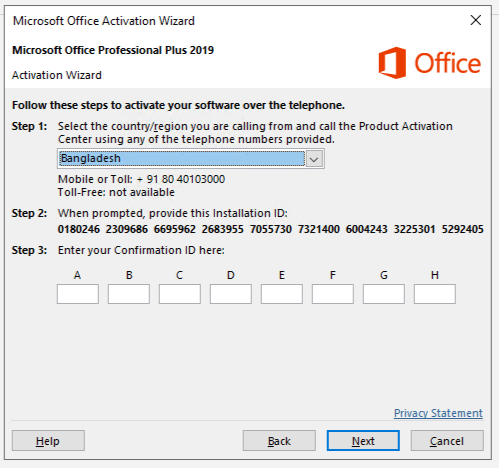
  • Select country (e.g. Bangladesh) to view your 63-digit IID.
  • Paste the Installation ID or upload a screenshot in the Upload Screenshot section.
  • Submit the form and copy the generated Confirmation ID (CID).
Installation ID
Step 3: Retrieve Installation ID
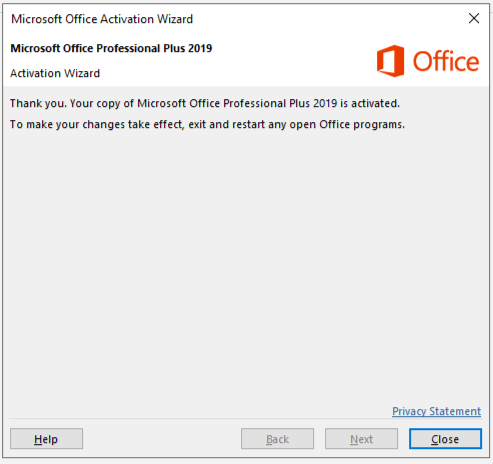
  • Finally you will see the Thank you message.
  • Enter it into the wizard, then click NextClose.
Enter Confirmation ID
Step 4: Enter Confirmation ID
You can also drag and drop an image or paste it (Ctrl+V).
Loading...